Communication records are used for recording and tracking activities that relate to the travel file.
B2E users can use communication records to record tasks, such as call customer, schedule a meeting, or make a travel file related phone call. These communication tasks can be prioritized and then followed up on according to their due dates.
B2B and B2C users can use communication records to communicate with the user assigned to the travel file. If no user is assigned to the travel file the communication records are entered into a queue, which the system default user can review, and then assign the relevant travel files to individual users.
Communication records can also be used for internal communications within the travel company, such as letting users know that an invoice needs to be issued, payment needs to be collected.
For more information see: Setup - Marketing - CRM Actions and Setup - Marketing - CRM Types
If the Reservations System is set up for B2E, in order to work with communication records, you need to define in the Administration Tools CRM Types and CRM Actions.
CRM types are the list of possible reasons regarding why the communication record is being created, such as Cancellation request, Confirmation, or Assistance request.
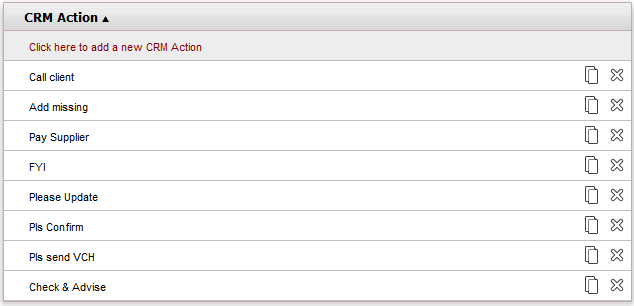
CRM actions are the list of available actions that should be performed, such as Check and advise, Call supplier, or Update travel file.
When a B2E user creates a communication record:
In the Regarding field they select a CRM type from a drop-down list
In the Activity Field they select a CRM action from a drop-down list.
There are 5 communication types (hardcoded into the system) that can be associated with a travel file:
|
Task |
|
Phone Call |
|
Meeting |
|
Document/Fax |
|
E-mail correspondence |
B2B and B2C communication records are always Task. E-mail Correspondence is not a type that can be selected. It is automatically added to communication records created from e-mal messages and cannot be changed.
For more information, see Setup - Database Definitions - CRM
You have the option of enforcing mandatory fields in communication records created in the B2E selling channel.
In the Administration tools, in the Database Definitions, you have the option of selecting the following fields in order to make them mandatory in the Reservations System:
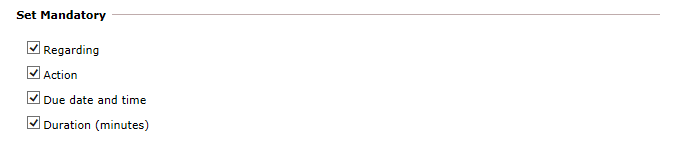
Regarding: The field in which you select the CRM type from a drop-down menu.
Action: The field in which you select the CRM action from a drop-down menu
Due Date and Time: The due date and time for performing the CRM action
Duration (minutes): The amount of time in minutes it took to perform the communication record
When a B2E user logs into the reservations system, if there are new
communications assigned to the user, a Communication
icon ( )
appears next to the user's name in the upper-left corner. Clicking on
the icon redirects the users to the Dashboard,
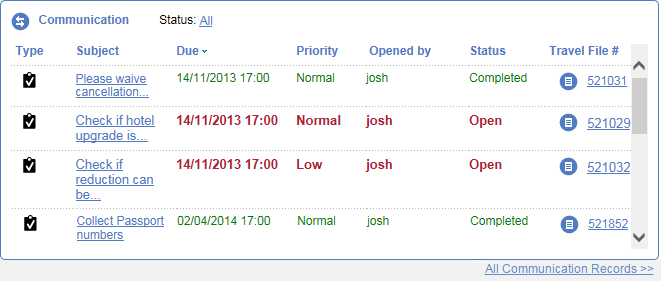
where up to 50 active communication records assigned to the user are displayed
in the Communications section.
This section includes the priority and status of the communication records.
You can click on the subject link or the Type
icon to open the communication record, or the Travel
file icon (
)
appears next to the user's name in the upper-left corner. Clicking on
the icon redirects the users to the Dashboard,
where up to 50 active communication records assigned to the user are displayed
in the Communications section.
This section includes the priority and status of the communication records.
You can click on the subject link or the Type
icon to open the communication record, or the Travel
file icon ( ) to open the travel file, the communication
record is attached to.
) to open the travel file, the communication
record is attached to.
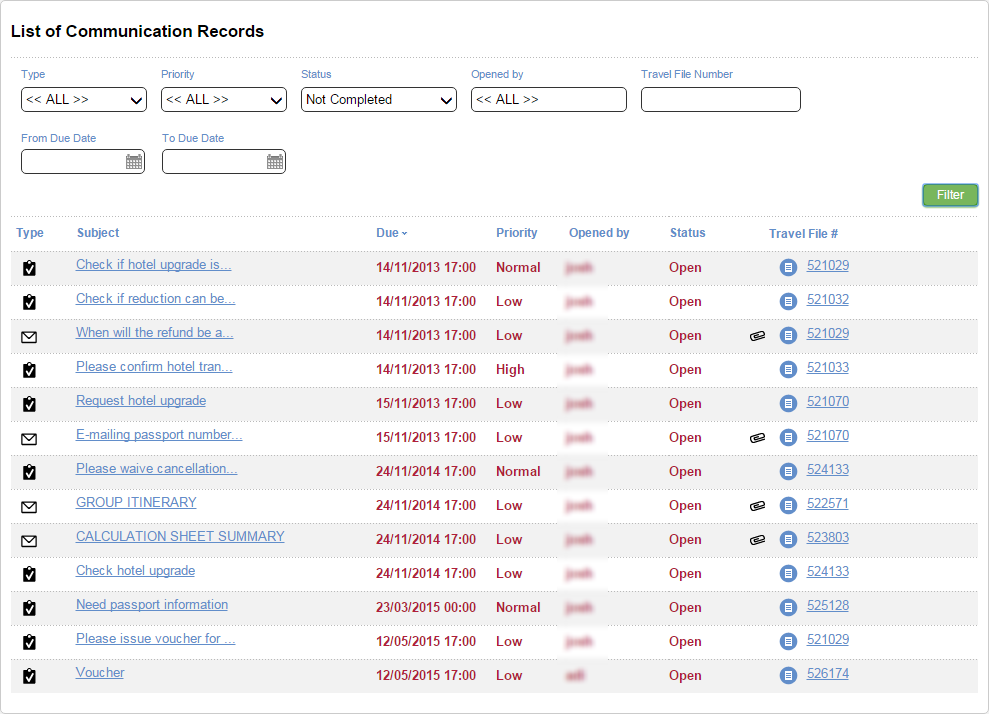
At the bottom of this section (and in the Tools menu), there is an All Communication Records link. If you click on this link, the List of Communication Records page is displayed.
In this page you can view all the communication records assigned to the user. By default only the uncompleted communication records are displayed, but you can filter the list to display communication records according to the following parameters:
Type
Priority
Status
Opened by
Travel File Number
From Due Date
To Due Date
|
If you filter the list for communication records opened by your user, you can also view communication records you opened and assigned to other users. |
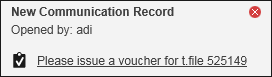
When a new communication record is assigned to the user, in addition to the icon that appears next to the user's name, a pop-up appears on the screen for 10 seconds.
 |
The notification and the pop-up require a predefined configuration in the database definitions. For more information contact your project manager. |
In the travel file, the Communications section displays the communication records that are attached to the travel file.

Records can be sorted according to column by clicking the relevant column heading. The following information is displayed for each communication record: type, subject, due date, user assigned to communication record and status.
When users create a new communication record they select the type of record from a drop-down list, enter the relevant information, and assign a user, priority and status. If relevant users can upload attachments to communication records. To create the record users should click Save. Once all the relevant actions have been performed, and the record can be completed user should click Save and Complete.
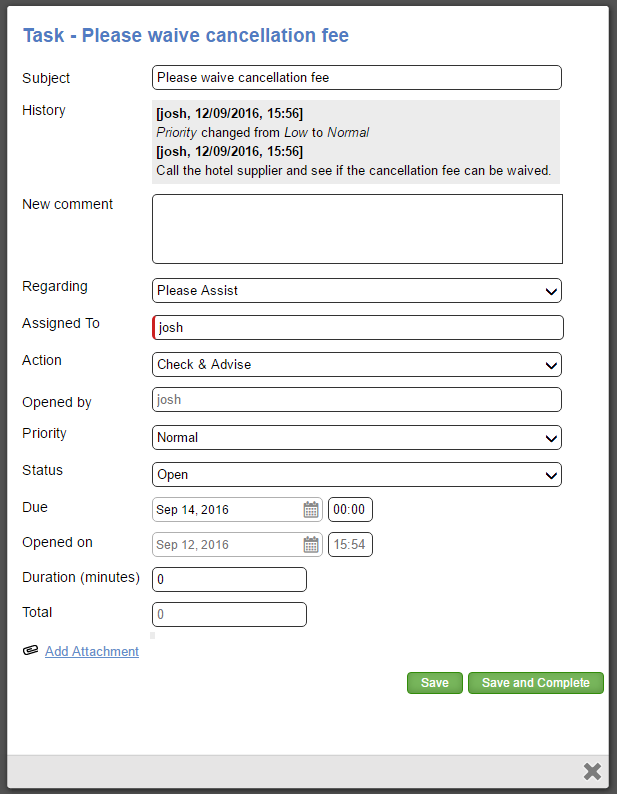
In the CVM page, you can view the communication records created for a specific customer. The communication records that are displayed are taken from the last travel file that was opened for the customer.
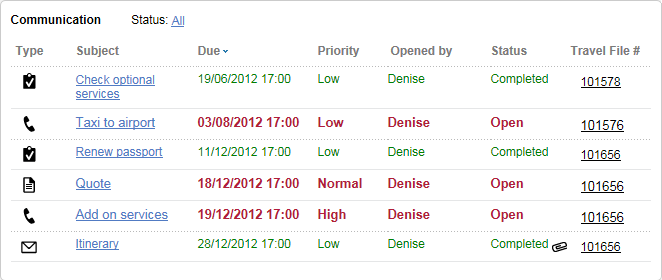
In the dashboard, the CVM page, and the travel file the status of each communication record is indicated by one of the following colors:
Black |
Record is active and due date is in the future |
Red |
Record is active and due date has passed |
Green |
Record is completed |
You can click All to display all records or Active to display only active records. A record that has been completed (green) is no longer active.
Each communication record includes the entire history of the record together with any relevant documentation.
|
A maximum of 1,000 communication records can be displayed on the dashboard. Completed communication records are not displayed. |
There is an add-in component, which can be attached to Microsoft Outlook. You can use this add-in to attach an e-mail message directly from Microsoft Outlook as a communication record to a specific travel file. The e-mail message can be tracked in the same manner that other communication records are tracked. If an e-mail message is attached to a travel file, you can open the travel file that is attached to it directly from Microsoft Outlook.


