Scroll to the MS Outlook Add-in heading and click the link to download the add-in for your version of Office.
Save the file named TBOutlookAddIn.exe to your computer.
Close Microsoft Outlook.
Open TravelBoosterAddInForOutlook.
The following message is displayed:
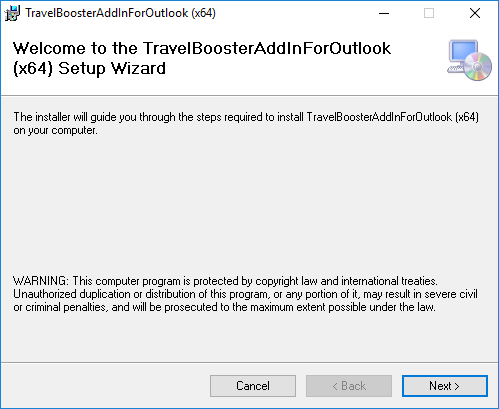
To install the Travel Booster Add-in, click Next until the add-in is installed and then close the wizard.
Open Microsoft Outlook.
After installation of the add-in is complete, the following message is displayed:
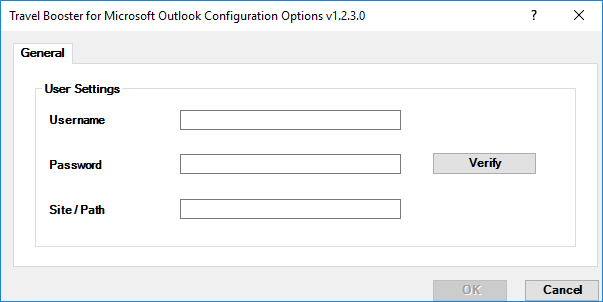
In the Username field, enter your system user name.
In the Password field, enter your system password.
In the Site / Path field, enter the URL of your B2E website. For example: http://www.companyTBsite.com
Click Verify.
After the add-in is verified, a green check-mark  appears next to the Verify
button.
appears next to the Verify
button.
|
To update the installation settings, in Microsoft Outlook, go to the Add-in tab and click on Travel Booster Options. |
