In the travel file, in the Communications section, click on the link of the relevant communication record.

OR
If you are in a B2E website, In the Dashboard, in the Communications page, click on the link of the relevant communication record.
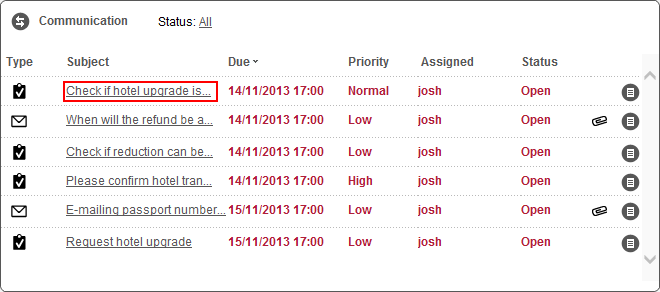
The communications record is displayed.
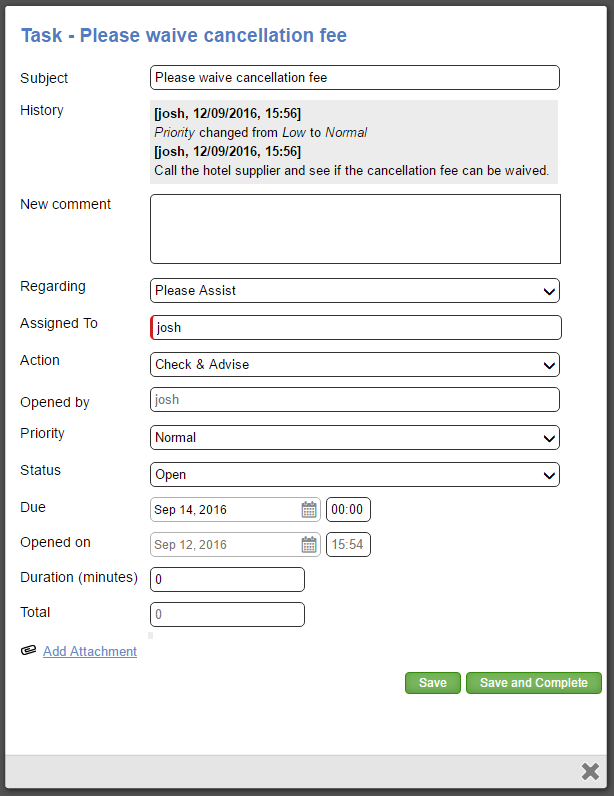
Update the communication record's fields according to the activity performed and the action to be taken.
|
For more information on the individual fields, see Creating a communication record - B2E and Creating a Communication Record - B2B/B2C. |

If required, click Add Attachment to upload a file to the record.
Click Save to save the updated record or Save and Complete if activity in the record has been completed.
After clicking Save or Save and Complete, the updates executed are recorded below the Subject field. This field contains the entire history of the individual record.
The Total field displays the accumulated duration of the record activity.