From the inbox, right-click the e-mail message that you want to add to an existing travel file.
Select  .
.
|
In an open e-mail message, the Add Email option can be selected from the Travel Booster tab. |

The following dialog box is displayed:
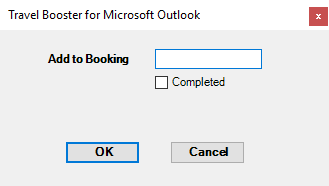
In the Add to Booking field, enter the travel file number to which the e-mail message is attached.
To mark the communication record as Completed, select Completed.
Click OK.
In Microsoft Outlook, the travel file number is added to the subject line of the e-mail. In the Reservations System, a new communication record is created for the travel file. The communication can be viewed by the user from the dashboard.
Subsequent messages in Outlook will also have the travel file number
in the subject line, and can be added directly to the travel file
by clicking .
The e-mail message can now also be opened from within the communication record by clicking Open email.