Access the travel file to which you want to add a new communication record.
In the Communication section, click New.

A New Communication Record dialog box appears.
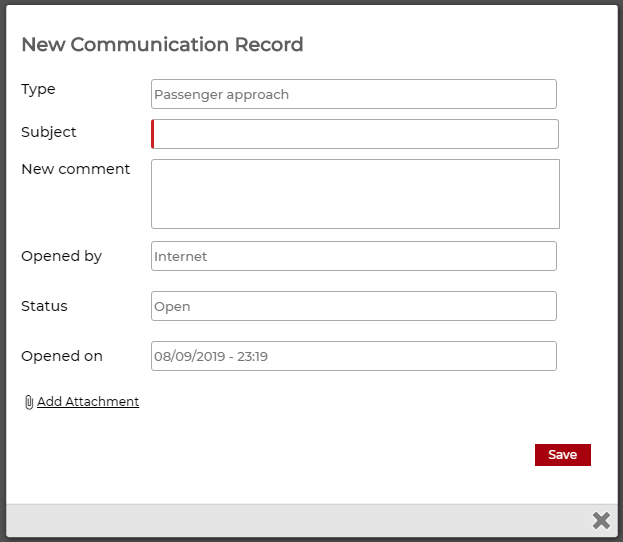
The Type field contains Task.
In the Subject field, enter the subject of the communication. This is a mandatory field.
Below the Subject field, enter the communication text..
If required, click Add Attachment to upload a file to the communication record.
|
Attachments can be up to 1 MB Supported file types: PDF, PNG, JPG, GIF To upload an attachment, the travel agent/corporate client needs the permit Allow travel agent to add attachments to a new communication record. No activation is required for B2C customers. |
To save the communication record, click Save.
The communication record appears as a pop-up, for 10 seconds, on the screen of the the user that is assigned to this travel file .
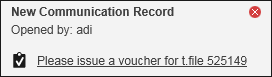
To indicate that there is a new communication, a New
Communication icon  appears next to the name of the user.

Clicking on this new icon, opens the dashboard where all communication records are displayed.
 |
The notification and the pop-up require a predefined configuration. For more information contact your project manager. |